
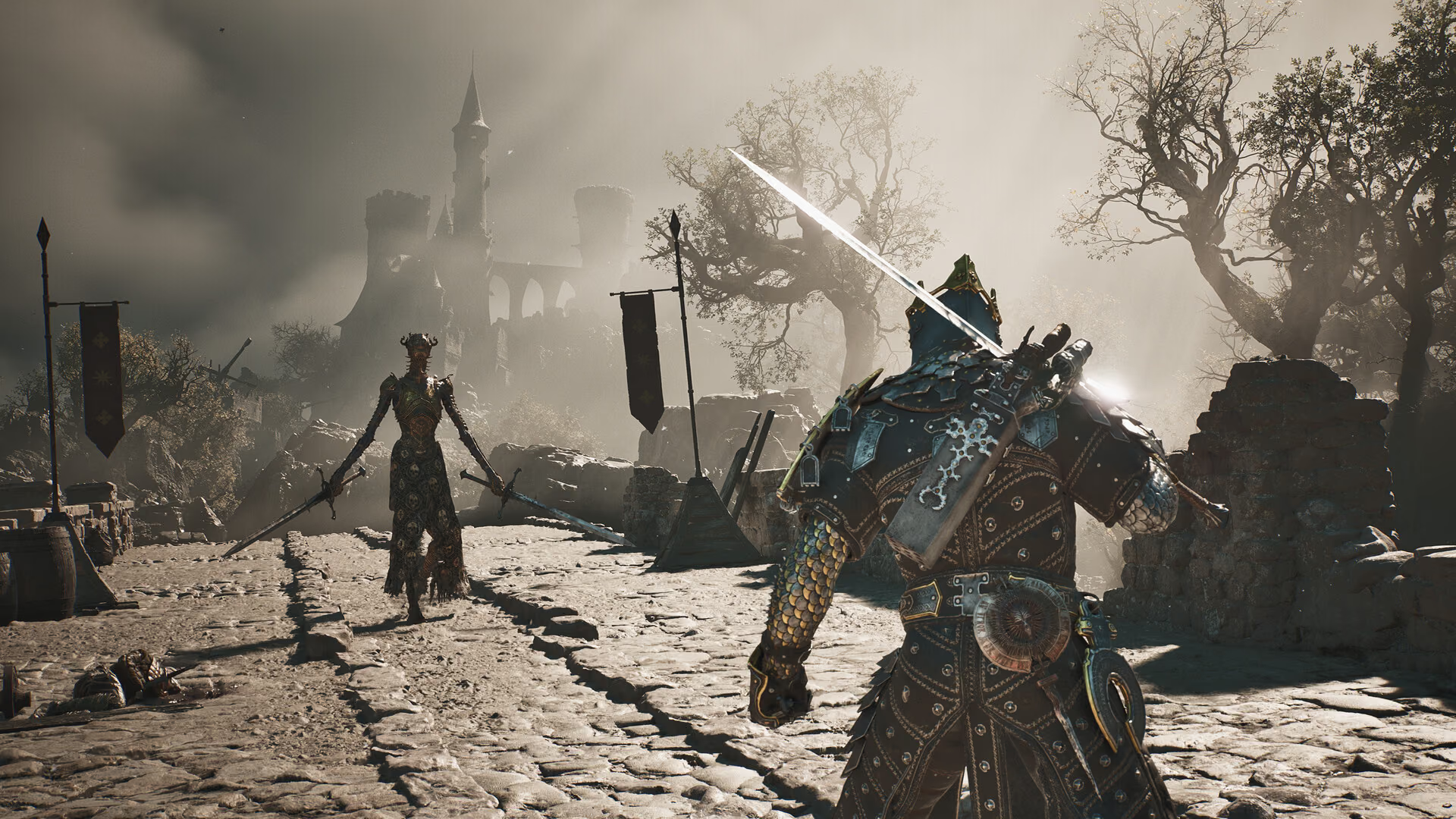
Minimum PC specification
| Part | Official minimum |
|---|---|
| OS | Windows 10/11 |
| CPU | Intel i7-10700K or AMD Ryzen 5 3600 |
| Memory | 16 GB RAM |
| GPU | RTX 2060 Super 8 GB or RX 6600 8 GB |
| API | DirectX 12 |
| Storage | 70 GB; SSD required |
Steam lists the CPU clock examples as 3.8 GHz for the i7-10700K and 3.6 GHz for the Ryzen 5 3600, and specifies 8 GB variants for both minimum GPUs. Source 1Mortal Shell II Steam system requirementsOpen source
Treat these as minimums, not a promise of a particular frame rate, resolution, or graphics preset. The current English Steam listing does not publish a separate recommended tier, so any site presenting an “official recommended” GPU is adding information that the store does not currently provide.
A practical compatibility check
- Confirm that Windows reports at least 16 GB of memory.
- Compare the exact GPU model and VRAM, not only the RTX or Radeon family name.
- Reserve more than 70 GB so Steam has room to download, unpack, and update the game.
- Install on an SSD, which Steam marks as required.
- Update the graphics driver before diagnosing crashes or severe stutter.
Integrated graphics and older cards below the listed minimum are not confirmed configurations. A machine that barely meets the minimum may need lower settings, but the store does not state the target performance, so we cannot promise a specific result.
Laptop and handheld caveats
Laptop GPUs with a familiar desktop name can run at different power limits. Compare real device performance with the listed desktop-class minimum rather than assuming the name alone is equivalent. Steam also does not currently display a Steam Deck compatibility rating on the facts used for this page.
For purchase and platform availability, use the release-date page. If you already own the PC version, the save-file guide explains where local saves are stored.
What the minimum does and does not promise
Steam publishes one minimum tier and does not attach a target resolution, frame rate, graphics preset, ray-tracing setting, or recommended specification to it. Source 1Mortal Shell II Steam system requirementsOpen source Meeting every listed part means the PC matches the storefront floor; it does not guarantee a locked 60 fps result or eliminate shader compilation, driver, storage, and background-process problems.
Treat any third-party “recommended” table as an editorial estimate unless the official listing adds that tier. A component being newer than the minimum is also not enough: product families contain models with very different performance and memory.
Check the CPU
The listed processors are an Intel Core i7-10700K and AMD Ryzen 5 3600. Source 1Mortal Shell II Steam system requirementsOpen source Compare the exact model, generation, core configuration, and sustained performance. An older i7 is not automatically equivalent to the named i7, and a low-power laptop CPU can share branding with a faster desktop family.
Open Windows System Information or Task Manager's Performance tab and record the full processor name. If it is not one of the listed models, use reputable model-specific benchmarks to compare it rather than relying on clock speed alone. The store's GHz examples are part of the model listing, not a rule that any 3.8 GHz CPU qualifies.
Check the GPU and VRAM
The minimum GPUs are the GeForce RTX 2060 Super 8 GB and Radeon RX 6600 8 GB. Source 1Mortal Shell II Steam system requirementsOpen source Verify both the model and dedicated video memory. An RTX 2060 non-Super, a mobile variant, or an integrated GPU is not the same configuration merely because part of the name matches.
In Windows, use Task Manager, Device Manager, or the GPU vendor panel to identify the adapter. On laptops with integrated and discrete graphics, ensure the game is assigned to the high-performance GPU. If Windows reports shared system memory, do not count it as equivalent to 8 GB of dedicated VRAM.
Memory and background use
The official minimum is 16 GB of system RAM. Source 1Mortal Shell II Steam system requirementsOpen source That is installed capacity, not a guarantee that all 16 GB is free. Browsers, launchers, capture tools, overlays, and other applications can reduce the memory available to the game.
Close unnecessary software for the first test and watch committed memory rather than guessing. If the PC has exactly 16 GB and begins paging heavily, lowering graphics settings may not fix a system-memory bottleneck. Do not disable the Windows page file as a general performance trick.
Storage and SSD requirement
Steam lists 70 GB and explicitly requires an SSD. Source 1Mortal Shell II Steam system requirementsOpen source Reserve additional free space for installation, unpacking, shader or temporary data, patches, and save backups. A drive showing exactly 70 GB free can still fail during an update that needs both old and new files temporarily.
Confirm the installation library is on an SSD, not only that the operating system uses one. Keep enough free space after installation for updates. Moving the library is safer than manually dragging game files while Steam is running.
Windows and DirectX 12
The listing supports Windows 10 or 11 and requires DirectX 12. Source 1Mortal Shell II Steam system requirementsOpen source Install current Windows updates and a stable graphics driver before diagnosing a launch failure. dxdiag can confirm the operating system, memory, GPU, and DirectX capabilities, but its presence alone does not prove the GPU meets the performance floor.
Avoid downloading standalone DLL files from third-party fix sites. Missing runtime or driver components should be repaired through Windows, the platform client, or the hardware vendor.
Laptop checklist
Connect power, select the intended performance profile, confirm the discrete GPU is active, and check thermal behavior during a repeatable area. Laptop power limits can make two machines with the same GPU label perform differently. High temperature or a quiet battery profile can lower sustained performance even when the specification looks sufficient.
Use the exact laptop model in performance research. Do not apply a desktop RTX 2060 Super result to a mobile GPU solely because both begin with “RTX 2060.”
Handheld and Linux caveats
The official facts used here do not include a Steam Deck rating, native Linux requirement, or handheld performance target. Do not interpret Steam availability as confirmation for every Proton version or portable device. Check the live Steam compatibility display and current device-specific reports before purchase.
Community reports can help diagnose a device, but they should include OS, driver, power profile, resolution, settings, and patch. A single “runs great” comment is not a reproducible benchmark.
First-launch troubleshooting order
- Verify game files through Steam.
- Confirm Windows and graphics drivers are current.
- Disable overlays and mods for a clean baseline.
- Check that the discrete GPU and SSD library are being used.
- Close background applications and restart the PC.
- Test the lowest sensible preset without changing several system settings.
- Record the exact error, hardware, driver, and game build.
If the game launches but stutters, separate shader or traversal hitches from consistently low frame rate. Test the same area twice, watch GPU memory and system memory, and change one setting at a time. If it crashes, preserve saves and logs before reinstalling.
This page was rechecked against the English Steam listing on September 3, 2026. It will not publish an “official recommended” tier until the official storefront provides one.
When requesting performance help, include the exact CPU, GPU, VRAM, RAM, storage type, Windows build, driver, resolution, preset, game patch, and whether mods or overlays are active. Remove account names and serial numbers. This information is enough to compare the PC with the published minimum without exposing private device identifiers.

