
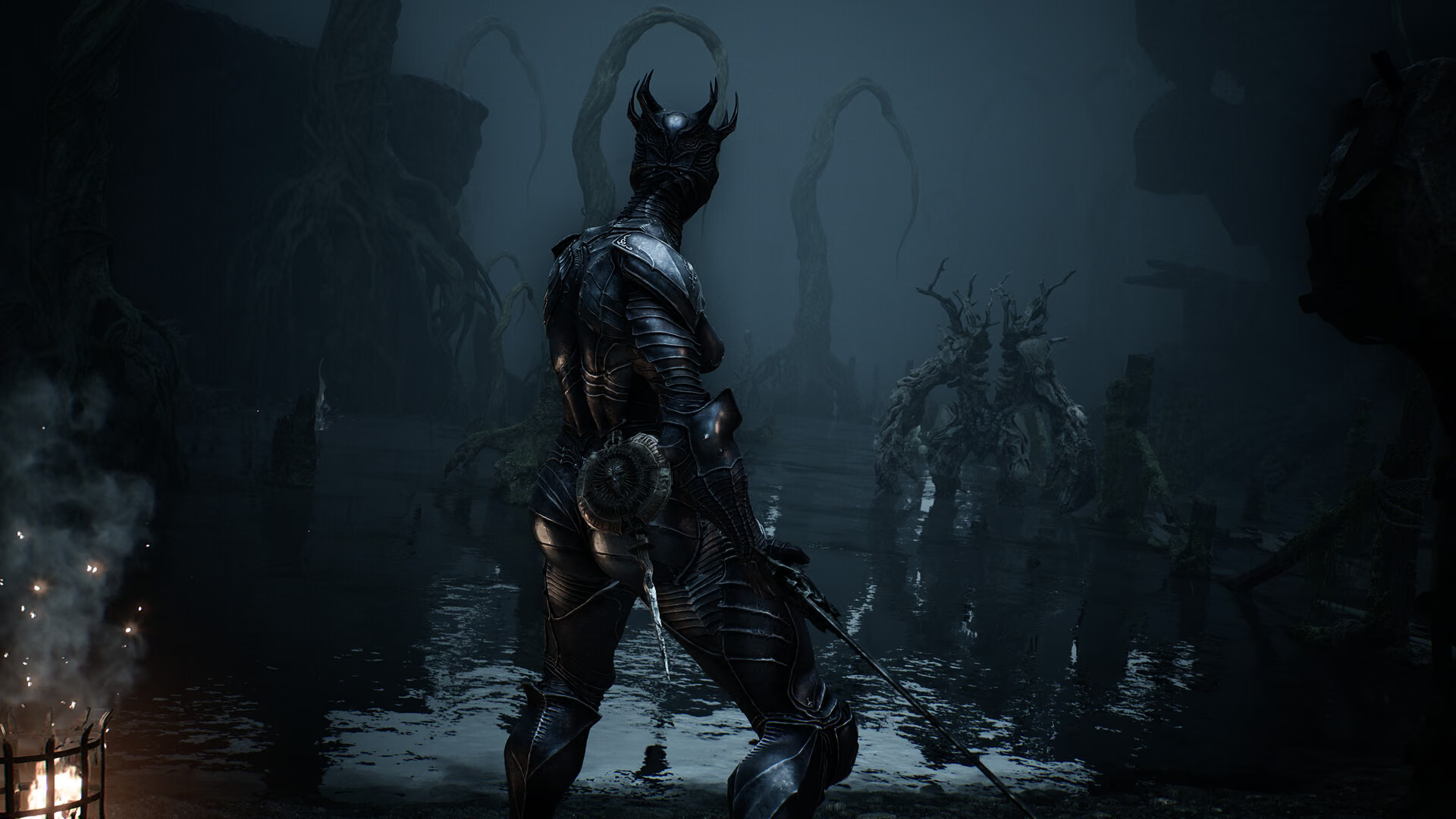
Install mods cautiously
Back up your save, read the author’s version notes, scan downloads, and install only one gameplay-changing mod at a time. A game patch can break a working mod; remove incompatible files before reporting a bug to the developer. Source 1Mortal Shell II mods on Nexus ModsOpen source
What is available
The dedicated Nexus index currently contains cosmetic replacements, interface changes, minimaps, quality-of-life tools, gameplay adjustments, build presets, save files, and cheat-style modifications. The catalog changes quickly, so this page does not freeze a “best mods” ranking or mirror downloads.
Cosmetic files usually carry less save risk than progression or gameplay changes, but no third-party modification is guaranteed safe. Save-file uploads and unlock-all packages can replace progression outright and may affect achievements.
Safe installation order
- Close the game and make a dated copy of the entire save folder.
- Record the installed game version and every file the mod asks you to add.
- Download from the mod's own Nexus page and read its requirements, posts, and update date.
- Install one mod, launch, and test a known save.
- Keep the original archive and removal instructions.
Use the save-file guide before changing anything. Do not test a new mod on the only copy of a valuable playthrough.
After a game update
Disable or remove gameplay and UI mods before launching a newly patched build. Check the author page for compatibility, then add files back one at a time. If the unmodified game works and the modded game does not, report the issue to the mod author with the exact versions and installation path.
The developer cannot reasonably diagnose a modified build as if it were stock. Review the patch tracker before assuming the game itself caused a new crash or broken menu.
Online and achievement caution
Mortal Shell II is officially single-player, but platform achievements and cloud synchronization still apply. Mods that change saves, difficulty, inventory, or progression can alter achievement behavior. Nexus files are community uploads, not official Cold Symmetry or Playstack content.
Risk levels by mod type
The Nexus catalog includes cosmetic, interface, quality-of-life, gameplay, preset, save, and cheat-style files. Source 1Mortal Shell II mods on Nexus ModsOpen source Classify a download by what it changes rather than by popularity.
| Mod type | Main risk | Minimum precaution |
|---|---|---|
| Cosmetic replacement | Broken assets or conflicts after a patch | Keep original files and removal instructions |
| Interface or minimap | UI conflict, wrong markers, unreadable menus | Test every affected menu on a backup |
| Quality-of-life | Hidden gameplay or configuration changes | Read the full change list and requirements |
| Gameplay rebalance | Save state, achievements, progression, balance | Use a separate save and one mod at a time |
| Build preset | Incompatible loadout or overwritten configuration | Export or record the current setup first |
| Uploaded save | Complete replacement of personal progression | Never install over the only save copy |
| Cheat-style tool | Security, stability, and achievement risk | Avoid on a valuable or synchronized save |
“Cosmetic” is lower risk, not zero risk. It can still replace shared packages or fail after an update.
Before downloading
Open the individual Nexus page and read the description, requirements, installation steps, removal steps, file date, supported game version, author posts, and recent user reports. Source 1Mortal Shell II mods on Nexus ModsOpen source Do not download a repost from an unrelated mirror when the author page is available.
Scan the archive with current security tools. Be cautious when a simple visual replacement asks for an executable, administrator rights, disabled security protection, account credentials, or an unrelated installer. This site does not inspect or certify the files.
Create a clean baseline
Close Mortal Shell II and make a dated copy of the entire save folder. Record the game build and verify that the unmodified game launches, loads the intended save, and reaches a known area. The save-file guide gives the current Steam path and rollback order.
Keep installation files separate from the backup. A backup stored inside the active mod or game directory can be altered or deleted by the same tool being tested.
Install one change at a time
Follow the author's current instructions exactly. Record every file added, replaced, renamed, or generated. Launch after one mod, reproduce a known route, open affected menus, rest at a Beacon, and exit normally. Confirm the save still loads before adding another file.
Installing a large collection at once makes conflicts difficult to isolate. Even when two mods work separately, they can replace the same package, configuration key, or interface asset.
Keep a removal manifest
Write down the original path and backup location for every changed file. If the mod provides an uninstall option, confirm whether it restores originals or merely removes its own loader. Never delete a broad game folder because a short guide says to “remove everything.”
When removal is uncertain, verify game files through the platform after protecting saves and personal configuration. Verification can restore official assets but may also remove intentional replacements, which is why the manifest matters.
After a patch
Disable gameplay, interface, and loader mods before starting a newly updated build. Read the patch tracker, then wait for the author to confirm compatibility when the mod touches changed systems.
Establish the clean baseline again. If the stock game works, add one confirmed-compatible mod and test. Do not report a developer regression from a modified executable, old loader, or changed package without reproducing it cleanly.
Save and cloud conflicts
Steam Cloud can synchronize a modded or replaced save before the mistake is noticed. Close the game and client before copying files, preserve the current local folder, and compare timestamps deliberately if a conflict prompt appears. “Newer” may be the unwanted modded state.
Save uploads and unlock-all files should be treated as replacement progression. They can change quest flags, inventory, trophies, and future patch behavior. Use a separate slot or local test environment and never place them over a 40-hour save.
Achievements and support
There is no guarantee that a mod preserves achievement behavior. Gameplay, difficulty, inventory, or save changes can satisfy, suppress, or corrupt conditions. If completion integrity matters, use an unmodified save and verify each platform notification before continuing.
Developer support needs a clean reproduction. Remove mods, verify official files, load a protected clean save when possible, and disclose that the issue was first observed on a modified build. Send mod-specific problems to the author with exact versions and a concise reproduction.
Performance and crash diagnosis
If the game crashes after installation, do not reinstall everything immediately. Remove the newest mod using the manifest, verify official files, and retest the same area. If the problem remains, compare logs and settings with the pre-mod baseline.
For stutter or visual corruption, disable overlays and injectors, confirm driver and game versions, and test without replacement textures or UI packages. Change one variable so the result can identify a cause.
Confirm a clean installation
Count the installation as successful only when the game launches from the recorded clean baseline, the intended change appears, and the same test area remains stable. Keep the archive name, installed paths, game build, and test result in the removal manifest before adding another mod.
What this site will not host
This site does not mirror mod archives, provide cracked executables, bypass platform protection, or claim that a community file is official. The dedicated Nexus index remains the source for author pages and live updates. Source 1Mortal Shell II mods on Nexus ModsOpen source
This guide was rechecked on September 3, 2026. The catalog changes continuously; safe backup, clean-baseline, one-change, and rollback practices remain valid even when individual mod names change.
If removal restores stability, keep the failing archive and manifest isolated until the author confirms compatibility; do not upload a private save unless the author has a clear, trusted support process.

